Published ahead of launch. We're not open for subscriptions yet, but here is exactly what setup looks like. We checked these steps and pictures against Claude on , and the full sign-up will be confirmed against the live service before subscriptions open. If a menu name in your app looks a little different, that is normal.
Before you start
- Adding a custom connector works on every Claude plan, including the no-cost one, which allows a single custom connector.
- Once we open, you will need a 9to95 subscription, because the connector asks you to sign in to it.
- On a Team or Enterprise plan, an owner adds the connector under Organization settings, then Connectors.
Steps
- Open Claude in a browser on a computer and go to Settings. Under Customize, choose Connectors.
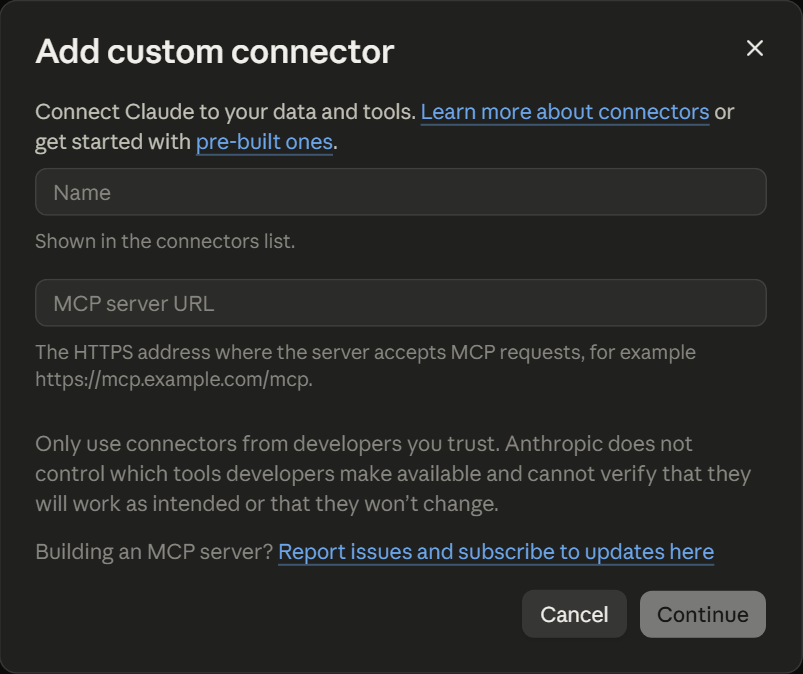
- Choose Add, then Add custom connector.

- Name it 9to95 and paste the connector address. It will be published here when subscriptions open. Choose Continue.
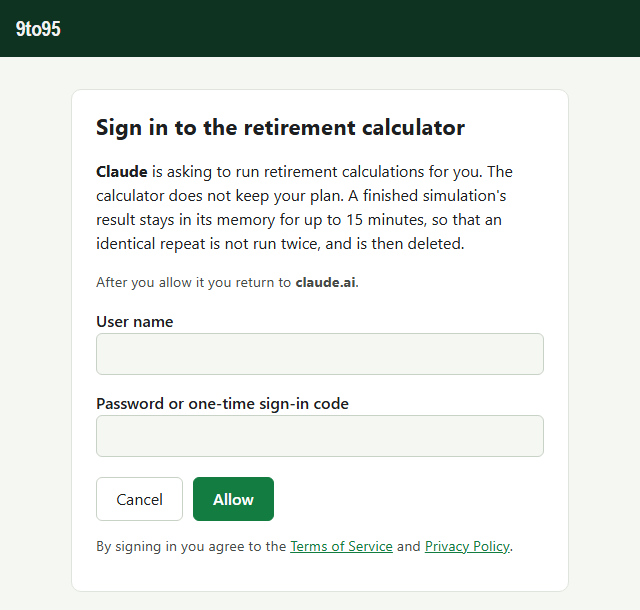
- The 9to95 sign-in page opens. Take a quick look at the address bar first: it must show the same site as the connector address you are given when you subscribe. Only ever type your password there. Then sign in and choose Allow.
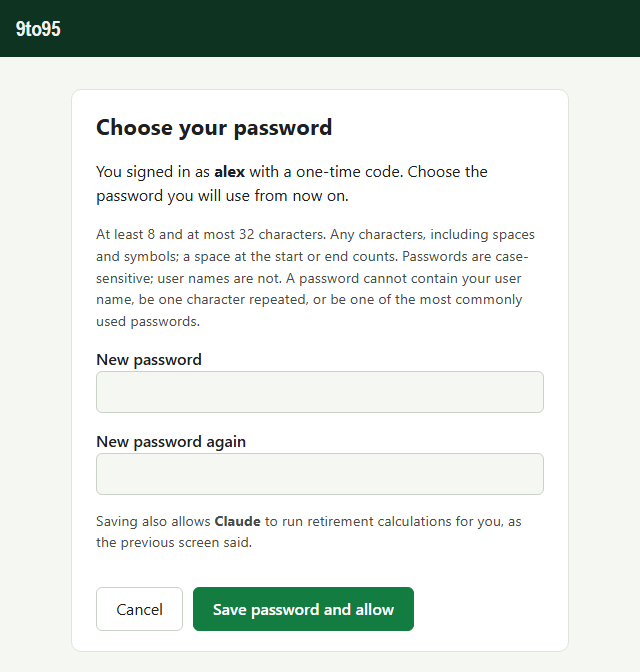
The first time, you sign in with a one-time code, and a second screen asks you to choose your password, twice.
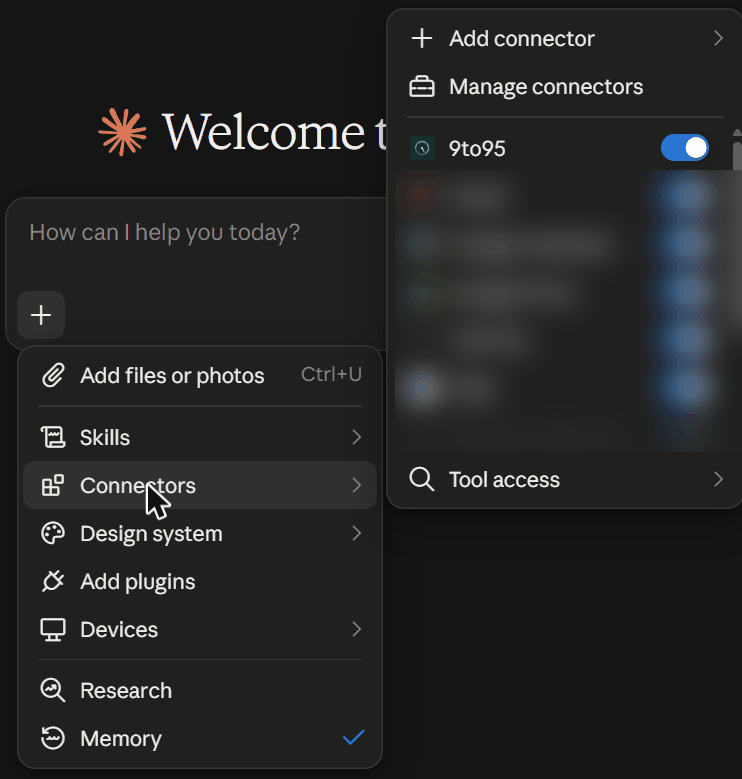
- In a new conversation, choose + under the message box, then Connectors, and check that 9to95 is switched on.
- Expect several permission prompts the first time. Claude asks before it reads 9to95's guides and before it uses each 9to95 tool, so a first session brings a run of prompts. That is just Claude being careful, not something going wrong. Choose Always allow on each one and Claude stops asking. 9to95's tools only calculate and return results. They cannot change or reach anything outside the plan you send. What 9to95 keeps, and for how long, is in our Privacy Policy.
- Now ask Claude to compare two retirement plans, say retiring at 62 or at 65. Claude asks about your household and writes a scenario for the calculator.
Once you are connected, the connector cheat sheet (PDF) lists what the calculator does, what its terms mean and starter prompts to paste.
Stuck? Write to support and tell us which assistant you used and roughly when. Please never send your password or a sign-in code.
Anthropic sets these steps and requirements, and they change from time to time. They were correct on ; if a menu has moved, Anthropic's own help has the latest.
Claude is a product of Anthropic, ChatGPT of OpenAI and Gemini of Google. 9to95 is not affiliated with or endorsed by any of them. Screenshots are shown to illustrate the steps.